
Data Options
There are five common data options that will appear throughout the reserves reports. Use these options to control what variables will be displayed in your reports.
Reserve Category Group
Use the Reserve Category Group report option to quickly select the reserve categories to include in your report. Only the reserve categories included in the group you select will be displayed in your report.
Change Category Group
All of your change records will be categorized into a change category. Use the Change Category Group option to quickly select the change categories to include in your report. Only the change categories included in the group you select will be displayed in your report.
Product Group
Use the Product Group report option to quickly select the products to include in your report. Only the products included in the group you select will be displayed in your report.
Ownership Type
Use the Ownership Type report option to restrict products values displayed in your reports to Net, Gross or Working Interest values.
Multi-Version Reports
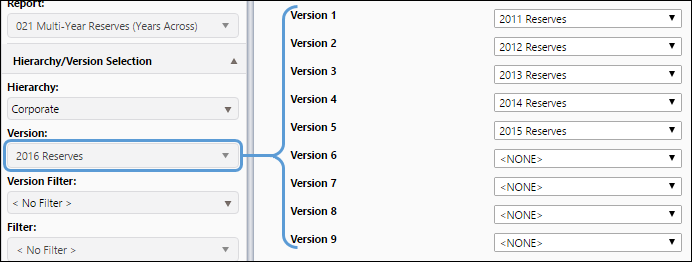
Some reports allow you to analyze and compare data from multiple versions. Use the drop-down menus on the Report Options page to select additional versions to include in your report.
Time Options
Use the snapshot option to select an effective date for the data in your reports.
Version Snapshot
Many of the standard reserves reports allow you to choose a snapshot for your report. When you do, your reports will only include data and predictions from before the effective date of the snapshot you select. When < No Snapshot > is selected, reports you create will include data at the latest effective date of the version.
Report Layout Options
Use the following report options to control the appearance of your reports.
Subtotaling
You can aggregate variable values in your reports using the subtotaling options. Subtotaled values will be emphasized in bold in your completed reports.
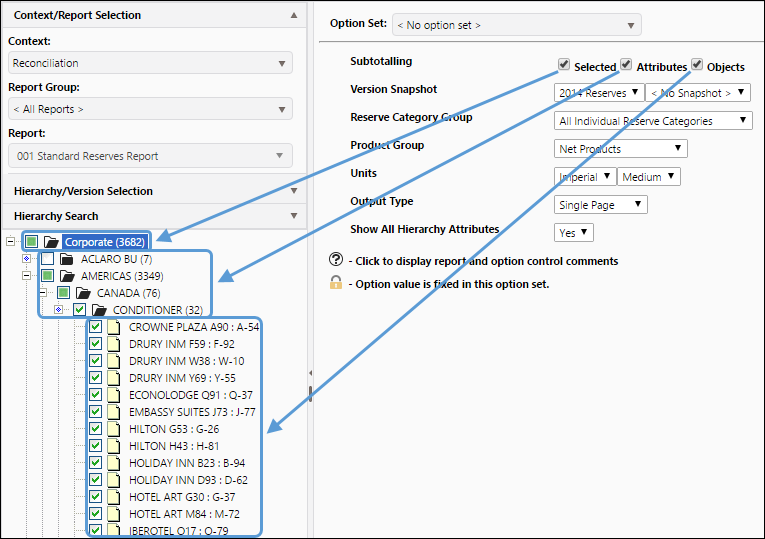
Most reports have include subtotaling options that will allow subtotaling at the level the report was generated, each level (attribute) in the hierarchy, and for each object in your hierarchy.
Click image to expand or minimize.
| Subtotaling | If all three subtotaling options are selected, subtotals for each level in the hierarchy are displayed. If no subtotaling options are selected, default subtotaling will be included at the selected level. |
|---|---|
| Selected checkbox | Displays a subtotal for only the selected folder in the hierarchy |
| Attributes checkbox | Displays a subtotal for all of the folders beneath the one you select. |
| Objects checkbox | Displays data for all the objects in the folder. For example, you may have a folder defined as a geographic area, with folders below defined as fields, which in turn contain individual wells. Select this option to display data for each object (in this case, for each well) listed under the folder. |
Total Position
When subtotaling (described below) is enabled, use this option to control the position of subtotaled values.
- Top: In horizontally-organized reports, subtotaled values will be listed closer to the top of the report. In vertically-organized reports, totals will be listed closer to the left side of the report.
- Bottom: In horizontally-organized reports, subtotaled values will be listed closer to the bottom of the report. In vertically-organized reports, totals will be listed closer to the right side of the report.
Units
Use the Units option to select the system of measurement (Metric or Imperial) used for data in your reports. You can also specify a magnitude (Small, Medium, Large) for values in your reports. The same product value, expressed using different factors, can be seen in the table below:
| Magnitude | Value in Report |
|---|---|
| Small | Wet Gas (Gross) 1,050,318.140 Mcf |
| Medium | Wet Gas (Gross) 1,050.318 MMcf |
| Large | Wet Gas (Gross) 1.050 Bcf |
Output Type
Use this option to restrict completed reports to single-page outputs, or multi-page outputs.
Show All Hierarchy Attributes
Selecting this option will add attribute values, corresponding with the structure of the hierarchy used to initialize your report, to your report. Where possible, all of the objects listed in your report will be categorized according to their hierarchy attributes.